- Install drivers. They can be downloaded here by clicking on the CBP-250S Driver Files link on the website: https://thecawleyco.com/TechnicalSupport.asp
- Cawley Badge Printing software: Open the provided application named BadgePrinter found here: Cawley Company folder > Cawley Badge Printer 3.4
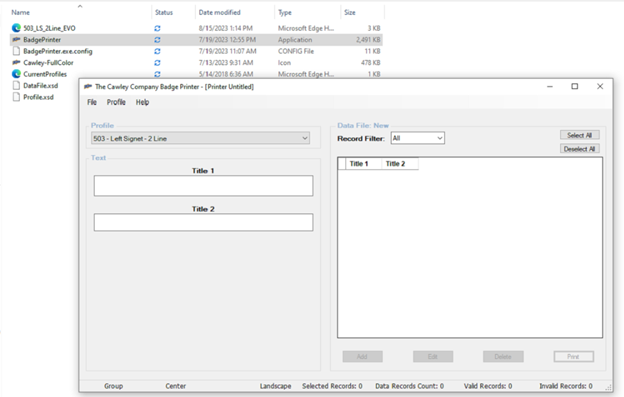
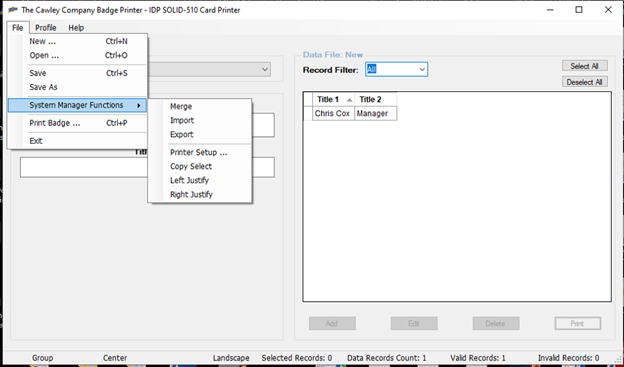
- Select Printer by clicking File > System Manager Functions > Printer Setup.
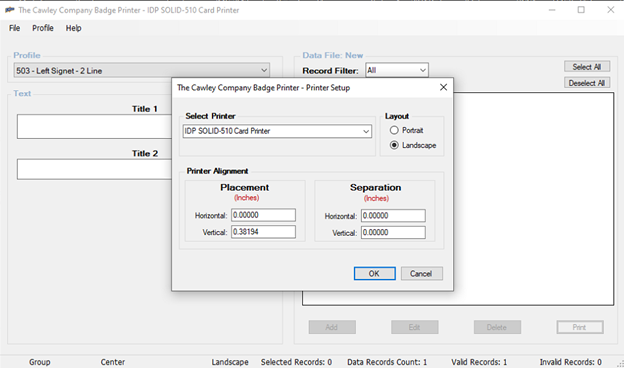
Select the printer from the Select Printer dropdown.
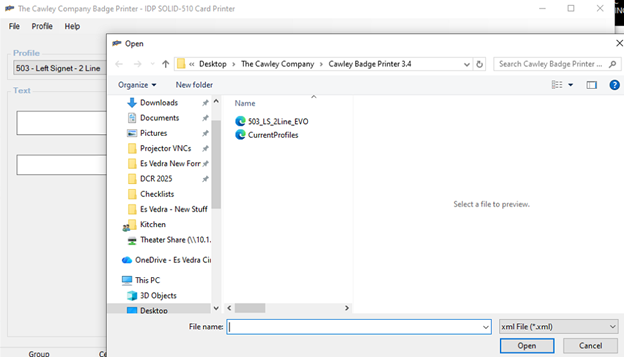
- Add profile by selecting Profile > Add.
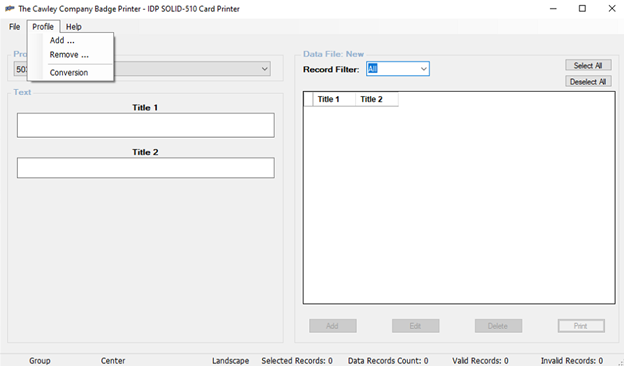
- Select the EVO profile that was provided.
Using Cawley Badge Printer software
- Type text into title 1 & title 2.
- Click Add button
- Click Select All
- Click on Print button
Was this article helpful?
That’s Great!
Thank you for your feedback
Sorry! We couldn't be helpful
Thank you for your feedback
Feedback sent
We appreciate your effort and will try to fix the article