Setting up a new user in the admin portal:
Under Phone System on the left of the page, select Users. Then select the Add New button on the top left.
Enter the user’s first and last name, their username (which will be their email) and their email.
Select End User from the User Type dropdown.
Select an available extension from the Extensions dropdown. Make sure you select the correct extension for the location.
Select Save and then Save & Update.
If necessary, remove user's extension from any call groups.
Adding a user to a call flow:
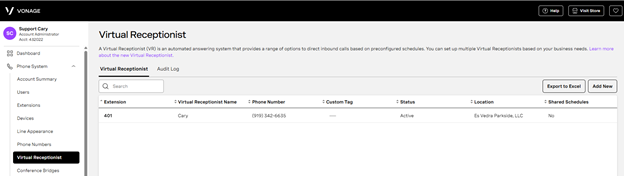
Under Phone System on the left of the page, select Virtual Receptionist.
Then select the location you want to edit
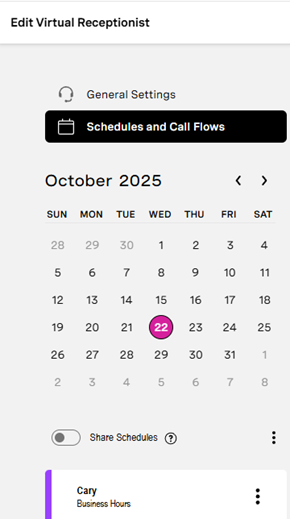
Select Schedules and Call Flows on the left of the screen. Then click on the three dots to the left of the Location Business Hours and select Edit.
Select Call Flow which will bring up the following screen:
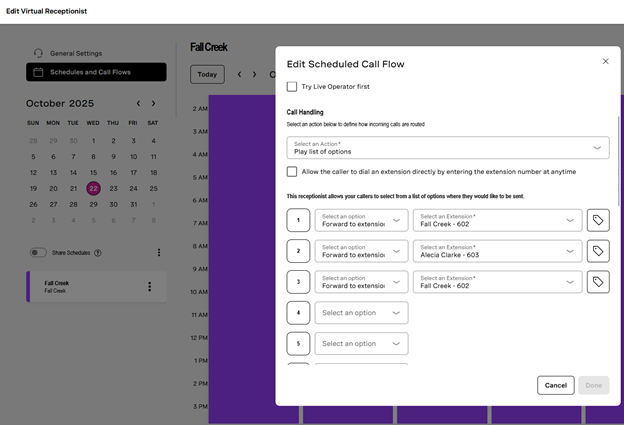
Select the user you want to apply to the extension (typically sales & events, which is extension 2) from the dropdown next to the forwarded extension.
Select Done.
Select purple Save button on the far top right of the page and the close button when finished.
Was this article helpful?
That’s Great!
Thank you for your feedback
Sorry! We couldn't be helpful
Thank you for your feedback
Feedback sent
We appreciate your effort and will try to fix the article